Setup guide

Create a Gemini API key in Google AI Studio.

This guide shows how to create a Gemini API key, paste it into Torah and Chassidus Translate, test it, and keep it safe. Gemini is the recommended first provider for most beta testers because it is fast, supports image/PDF-style workflows, and works well for whole-project translation.

Never share your API key in screenshots, support forms, email, or public chats. Torah and Chassidus Translate stores provider keys on your device and does not include them in backups or Global Library submissions.
1

What you need

  • A Google account you are comfortable using for AI Studio.
  • Torah and Chassidus Translate installed on your iPhone, iPad, Android device, or Mac.
  • Optional billing if you plan to run large PDFs, high concurrency, or frequent batch translation.
!

Important key type note

Google now recommends Gemini API auth keys created in AI Studio. Older unrestricted standard API keys are being phased out for Gemini API use, so create a fresh AI Studio key when possible.

Step by step

Create the key in AI Studio.

Open the API keys page

Go to aistudio.google.com/app/apikey and sign in. Accept the AI Studio terms if Google asks.

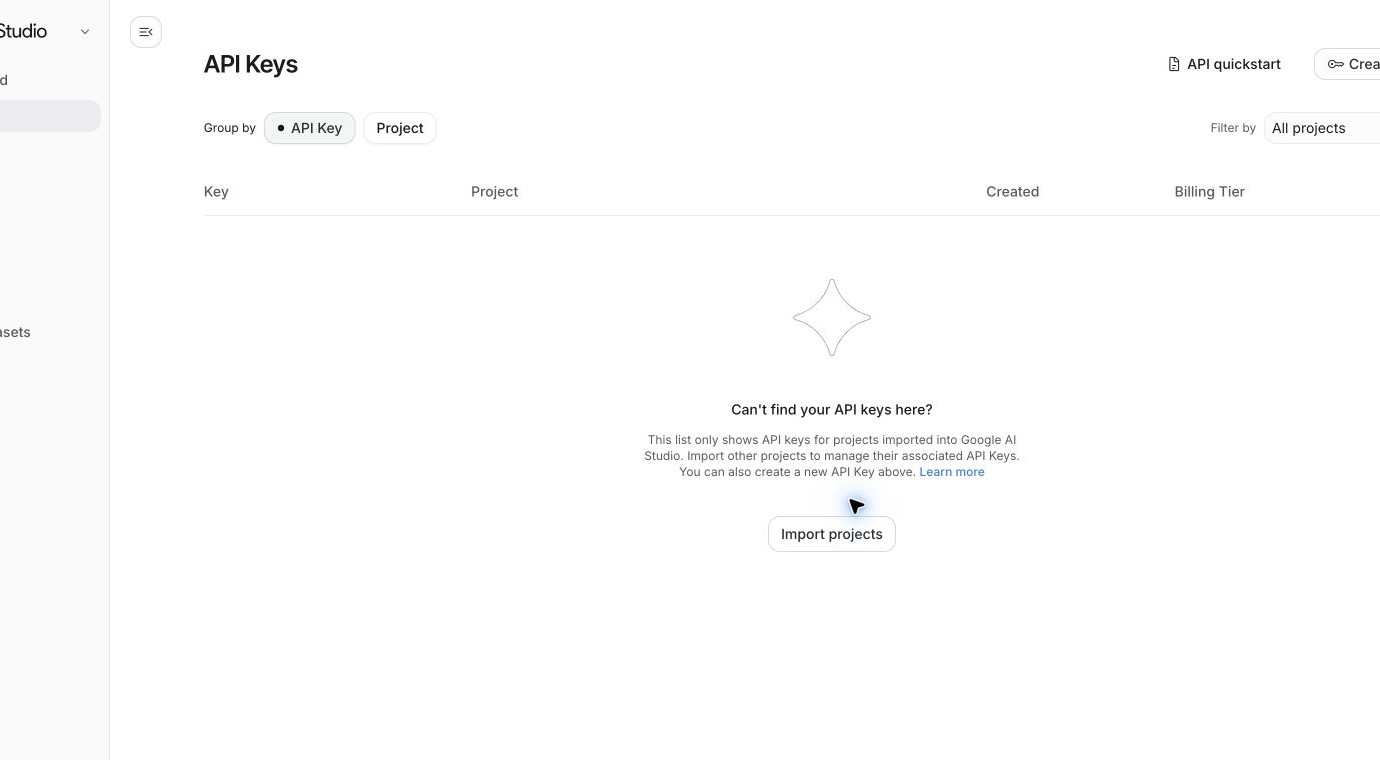
Click Create API key

Use the Create API key button near the top right of the API keys page.

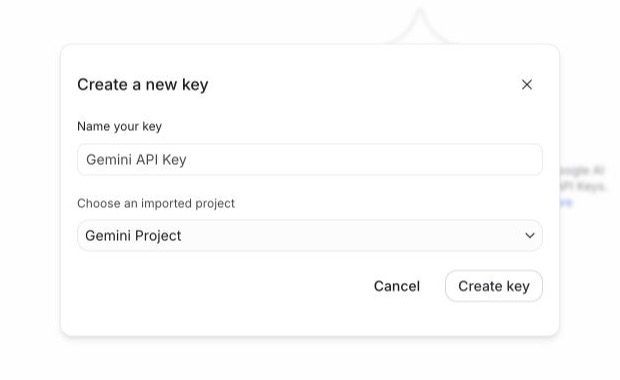
Choose or create a project

New AI Studio users may get a default project automatically. Existing Google Cloud users may need to import a project first from the Projects page.

Copy the key once

After Google creates the key, copy it immediately and paste it into the app. Treat it like a password.

Google AI Studio API keys page with Create API key button
Google AI Studio API keys page. Use the Create API key button to start.
Google AI Studio Create a new key dialog
The Create a new key dialog lets you choose an AI Studio or Google Cloud project.

If you do not see a project

Import or create a project, then return to API keys.

AI Studio can only create keys for projects it can see. Open the AI Studio Dashboard or Projects page, choose Import projects, select a Google Cloud project, and import it. Then return to the API keys page and create the key.

If the Create API key button is unavailable

Your Google account may not have permission to create keys, enable services, or create service-account key bindings for that project. Use a project you own, or ask the project administrator for the required API key and service-usage permissions.

In the app

Add and test your Gemini key.

Once you have copied the key from AI Studio, configure it inside Torah and Chassidus Translate.

Open Settings

In the app, open Settings, then go to provider or API key settings.

Select Gemini

Paste the key into the Gemini API key field and save it. Do not paste keys into support forms.

Test the key

Use the key test action. If it passes, set Gemini as the default provider and choose Gemini 3.1 Flash-Lite for fast beta testing.

$

Billing and rate limits

  • Small tests may work on the free tier, but large PDFs and batch translation can hit quota quickly.
  • Google measures limits by requests per minute, input tokens per minute, and requests per day for each project.
  • Daily request limits reset at midnight Pacific time.
  • Paid API usage requires billing on the Google Cloud project; some accounts must prepay before using the paid tier.
  • Start with a small PDF or a few pages, then increase batch size after you confirm your quota and billing settings.
🔒

Security checklist

  • Do not commit API keys to GitHub or paste them into chat/support.
  • Do not leave personal keys on shared library-station devices.
  • Use Google Cloud billing alerts if you enable paid usage.
  • If a key is exposed, create a replacement, update the app, verify the new key works, then disable or delete the old key.
  • If Google marks a key as unrestricted, add Gemini API restrictions where the AI Studio page offers that action.

Troubleshooting

Common setup problems.

The app says Gemini is not configured

Open Settings, paste the key again, save it, and run the key test. Make sure you are editing Gemini, not another provider.

AI Studio does not show my project

Use AI Studio’s Projects page to import the project, then return to API keys. AI Studio only displays imported AI Studio projects and compatible Gemini keys.

I get 401 or 403 errors

The key may be copied incorrectly, disabled, restricted to the wrong API, or tied to a project without Gemini API access.

I get quota or rate-limit errors

Translate fewer pages at once, lower batch concurrency, wait for quota reset, or enable/upgrade billing for the Google Cloud project.